OEG Connect is built on the open source Discourse community software platform, and as a discussion environment, is driven by the activity of conversations-- and it might seem unstructured. Or complicated. We hope to remedy this with a guide to navigating and participating here plus a series of followup posts with more how tos.
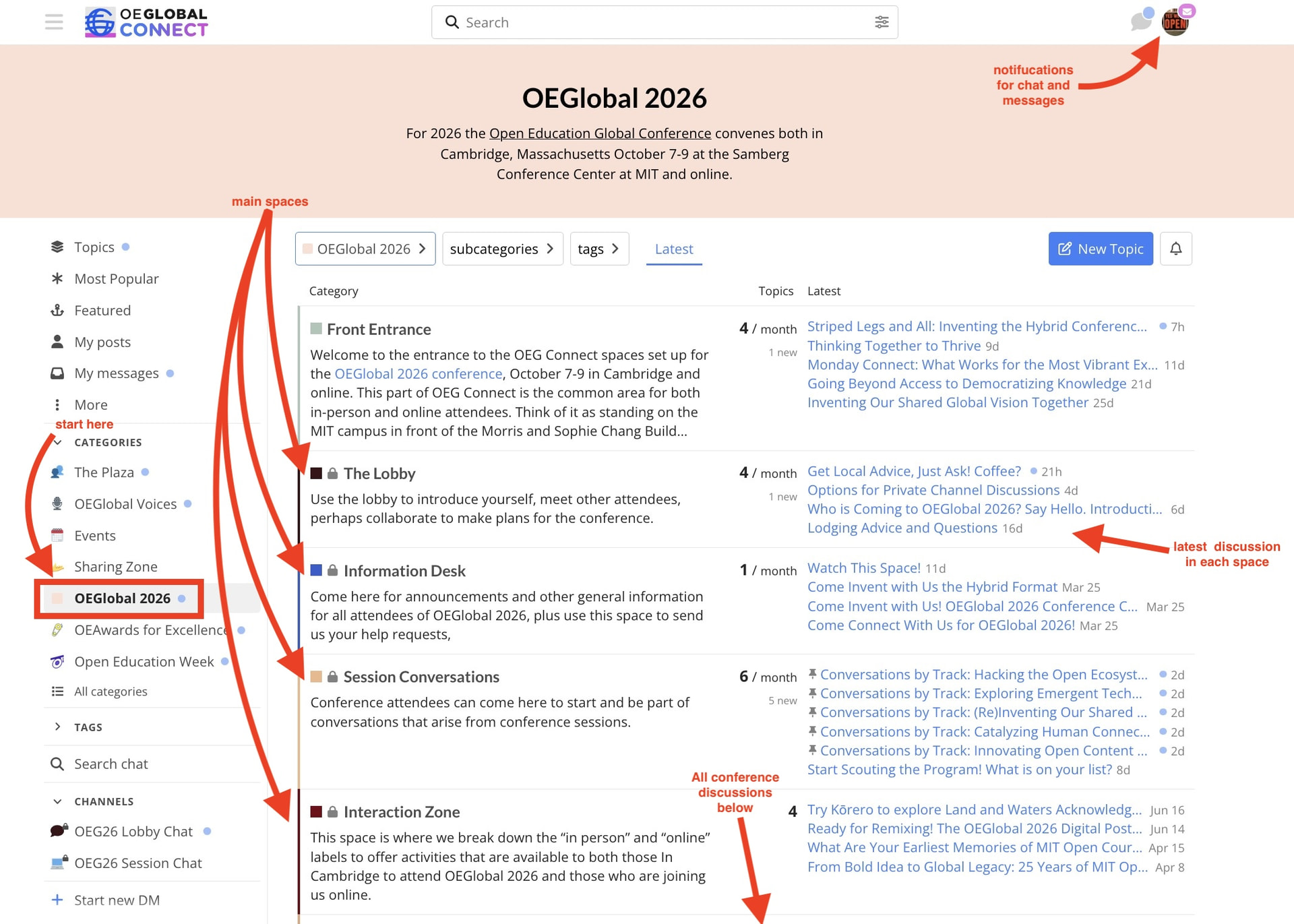
 (1) The Main Conference Area
You can find the main entry to the conference area at https://connect.oeglobal.org/c/oeg-2026 but also via the category link on the the OEG Connect navigation menu.
The structure is loosely based on spaces at any conference venue, a lobby to meet and socialize, an information desk, and of course tooms where sessions happen and conversations about them.
(2) Filling out your profile
If you click on any Connect users name or icon you will see a mini profile card, and if you click that again, you can see a more detailed profile. It starts with the basic information you entered when creating an account, and you may optionally choose to add a more complete profile, description, avatar. This is up to you how much you want to share.
Note that your email address is never publicly displayed We encourage like other online spaces, that you do not include any contact details in any discussion. OEG Connect has built in tools for private messaging (see below).
If you are new to OEG Connect or maybe have not updated your account in a while, please visit your own OEG Connect Profile to provide as much information that you would like others to see.
(3) Private Messages
Most conversations in the connect space are public, but like many other social media platforms, it has a built in means to send a private message. Anywhere you see a connect user’s name or icon, just click once to open their mini profile. Right there you can send them a private message or even open a direct chat.
I can just click your username/icon to see your mini profile, and use the buttons to send message or open a chat, both are private.
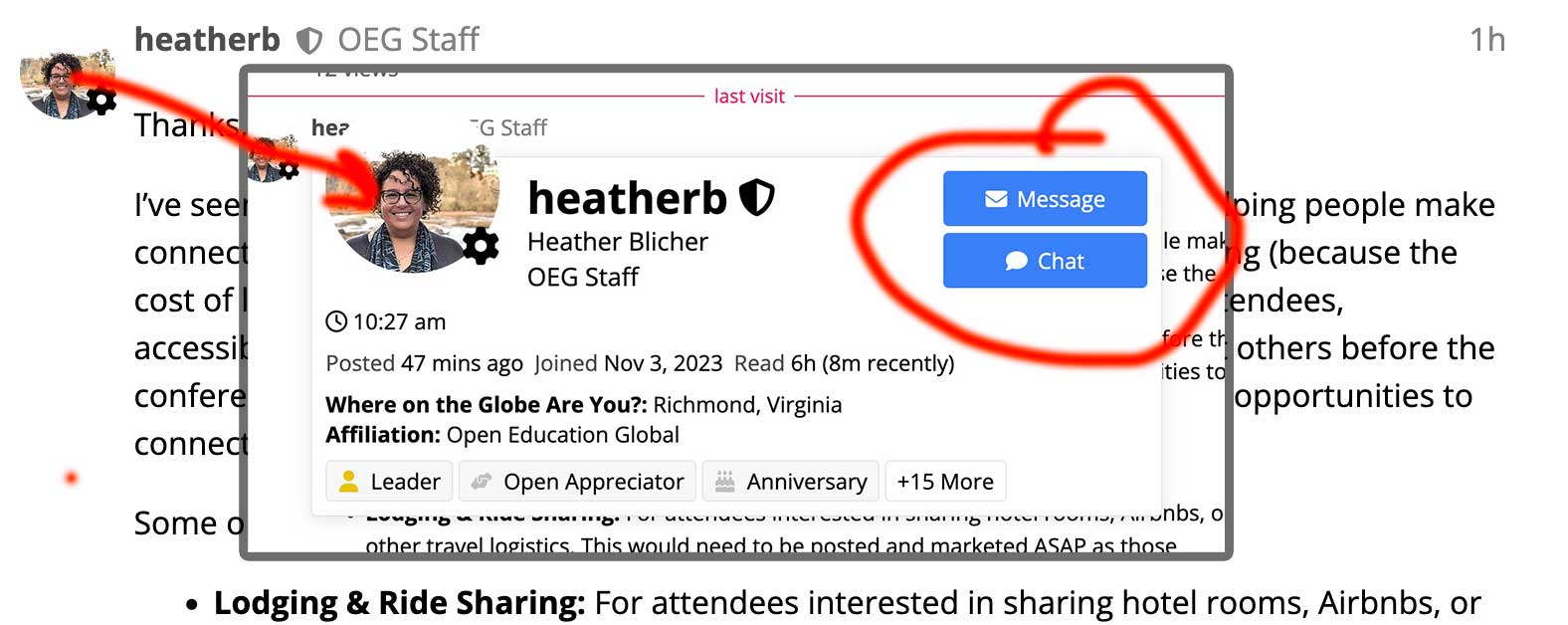
Feel free to try it with my account! It works as well anytime you see an @ mention in a post - @cogdog.
You will know you have messages or other activity if you see a blue dot near your user icon in the top right corner or see one on the My Messages link in the left side menu. Also, following this link https://connect.oeglobal.org/my/messages will also take you to see any private messages.
(4) Useful Buttons
Below every post and reply are a set of buttons:

Left to right:
- Give some affirmation with the familiar like button, but hover to see a few other options.
- Share via a link or by email
- Bookmark any useful post or reply you might want to find again, saved under a link from your user icon or directly https://connect.oeglobal.org/my/activity/bookmarks
- Flag for notice- if you see any post or message that might not be appropriate, click the flag to notify the site admins for review and followup
- Reply - add to the conversation!
(5) Bump Your Notifications
OEG Connect uses logic to keep you posted of replies, or topics you have chosen to be of interest, or entire areas of the site where you want a higher level of notification.
This is not necessarily mean a flood of email! If you have been active in OEG Connect recently, the notification shows up as a blue dot above your icon. If you are away, OEG Connect will notify you gently by email. You can update your settings to control how often you are notified by email and also enable/disable alerts on your device.
During the conference, you can increase your alert level of any of the main conference areas but look in the top right of any (conference space](OEGlobal 2026 - OEGlobal Connect) for the  bell icon- click to set your notifications to “Watching” which keeps you informed of new activity when you return to Connect.
You can also increase your notification level for a single post, look for the same bell icon in the bottom right corner.
(6) Compose Like an OEG Connect Pro!
The visual editor should be relatively intuitive, you see a view of Markdown/HTML where you compose, and a live preview on the right.
You can add images to a message by simply dragging and dropping from your computer or via the add Image/File icon in the menu bar.
There is much more you can do! Like embedding media, creating image galleries, creating time code stamps that display in a readers local zone… Even more details are available in our Guide to OEG Connect
Hopefully this gets you started being an active participant in Connect. If you have any questions, contact us via @OEGConnect
And there is another valuable participation tip-, if you refer to a person while composing a post or a reply, start with the @ sign and continue typing their name, see if their OEG Connect username comes up.. , including another users account name here both acknowledge them and also will send them a notification, that they have been mentioned.
Isn’t that how it works @marcela and @igorlesko ??
Look for more how to posts in the Information Desk area… and I am sure there are ore questions, just try out that reply button!
OEGlobal 2026 Navigator
 Program in Sched
 OEGlobal 2026 Conference Web Site
 Main Space in OEGConnect
 Front Entrance public conversations “outside” the venue
For Attendees:
Front Entrance public conversations “outside” the venue
The Lobby meet attendees
Information Desk updates and help
Session Conversations discussion and sharing
Interaction Zone activities and things to do